 | Optimize scans and image documents |
Click on the preference tab "Optimization". Afterwards, further options will be displayed in order to apply image optimizations in scans and documents.
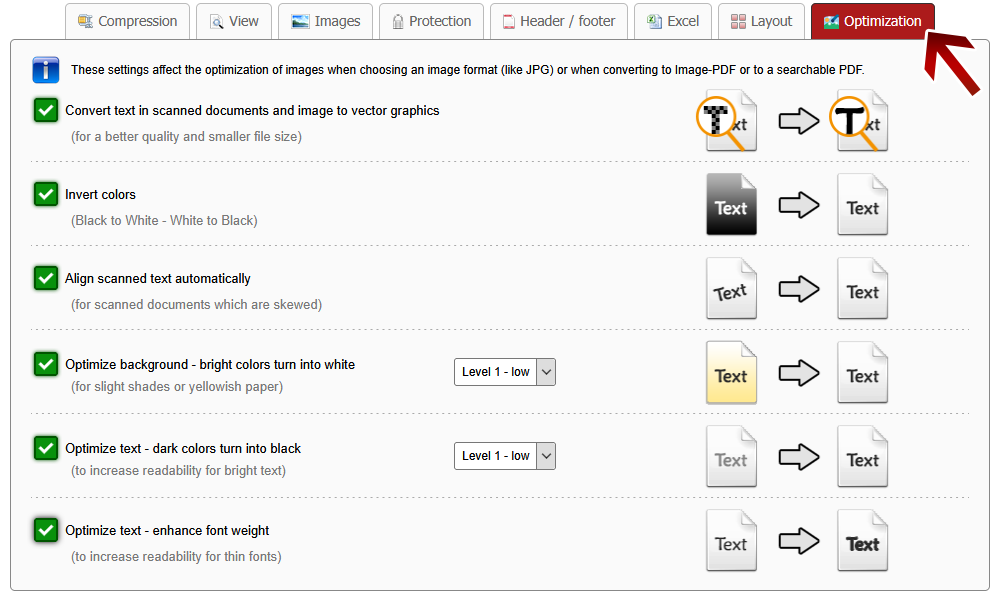
Convert text in scanned documents and images to vector graphics:
You can use this feature for scanned text documents to improve text quality and reduce the file size at the same time.
If you scan a text document then you usually get a JPG file or an image embedded in a PDF as a result. This image consists of pixels and if you zoom in, the text will get blurred at a specific zoom level. To avoid this kind of problem you can convert the pixels representing the text to vector graphics. A vector graphic can be zoomed indefinitely because the graphic consists of scaleable vectors - like a normal font in a Word document. Therefore, you get a clear and sharp font and a very small file size.
 | Note: High scan resolution recommended |
In order to create the vector graphics efficiently, a high scan resolution of 300 dpi and a high quality setting for the JPEG compression is recommended for the scan settings in your scan software.
Invert Colors:
You can use this feature if you have images where you want to transform black color to white and white color to black (for example a white text on a black background, like photos of a blackboard). This improves the readability and saves ink when printing the file.
Align scanned text automatically:
You can use this feature if you have scanned documents which contain skewed text. All pages will be automatically rotated and aligned.
Optimize background - bright colors turn into white:
You can use this feature for slight shades and for greyish or yellowish paper. This option automatically transforms bright colors to pure white. You can choose between 6 levels, the higher the level the darker discolorations will be cleaned up. Level 4,5 and 6 should also remove small dark dots and scan artefacts.
Optimize text - dark colors turn into black:
You can use this feature if the text in your document is poorly readable because the text is not dark enough. This option automatically transforms dark colors and dark text to pure black. You can choose between 6 levels, the higher the level the brighter text will be transformed to black.
Optimize text - enhance font weight:
You can use this feature to strengthen the font weight in order to increase the readability of thin fonts.





 Merge files
 Extract pages, rearrange pages or
  Rotate PDF pages
 Compress PDF & reduce file size
 Conversion from PDF to Word, Excel & PowerPoint
 Make scanned PDF searchable
 Remove protection &
  Protect PDF or
  Create header / footer
 Create bookmarks &
  Multiple pages
  Create booklet
 Split multi-page-layout
 Change PDF page layout
 Optimize scans and image documents