 | Change PDF page layout |
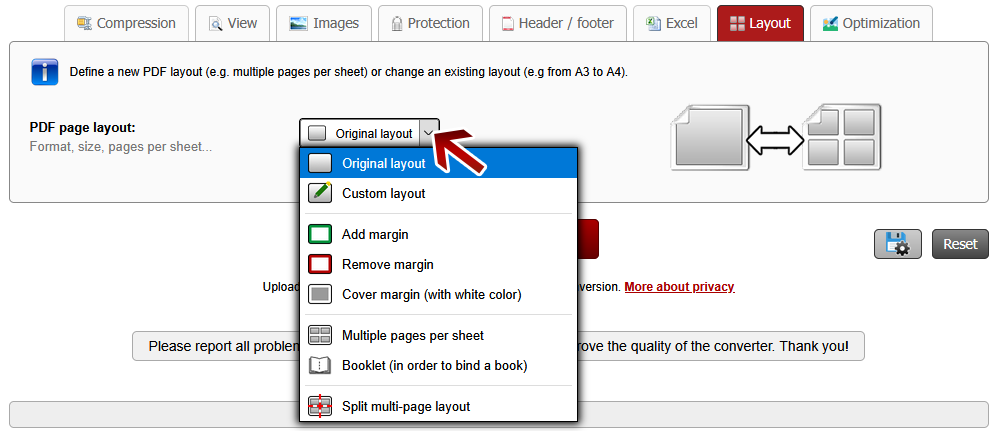
Click on the preference tab "Layout". There you can find a dropdown menu with following options:
Option "Custom layout"
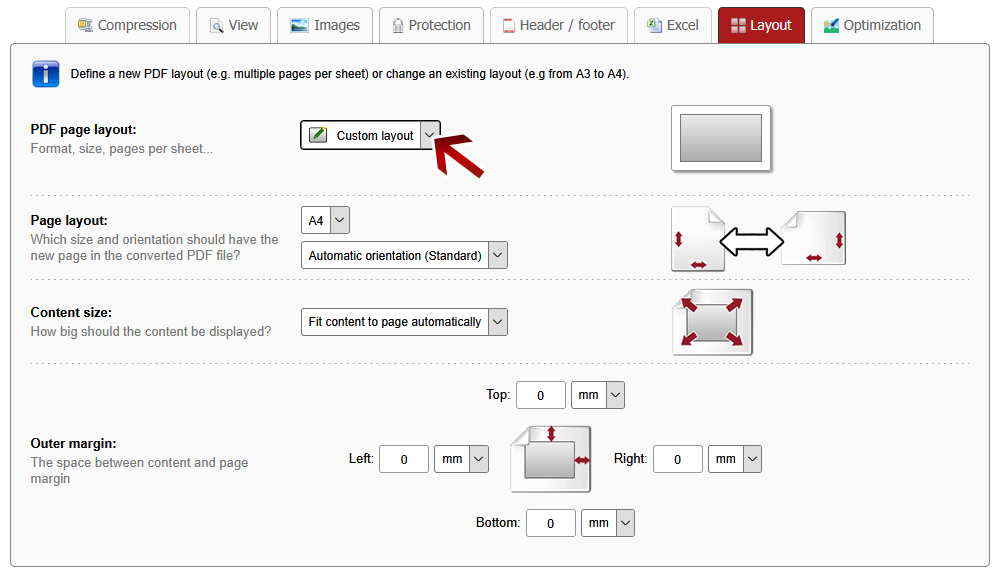
If you choose the option "Custom layout" in the dropdown menu, there will be displayed many options for customizing the layout.
You can change the layout of existing documents, for example from A3 to A4. You can set the page size as well as the size and position of the content on the new page.
 Option "Add margin"
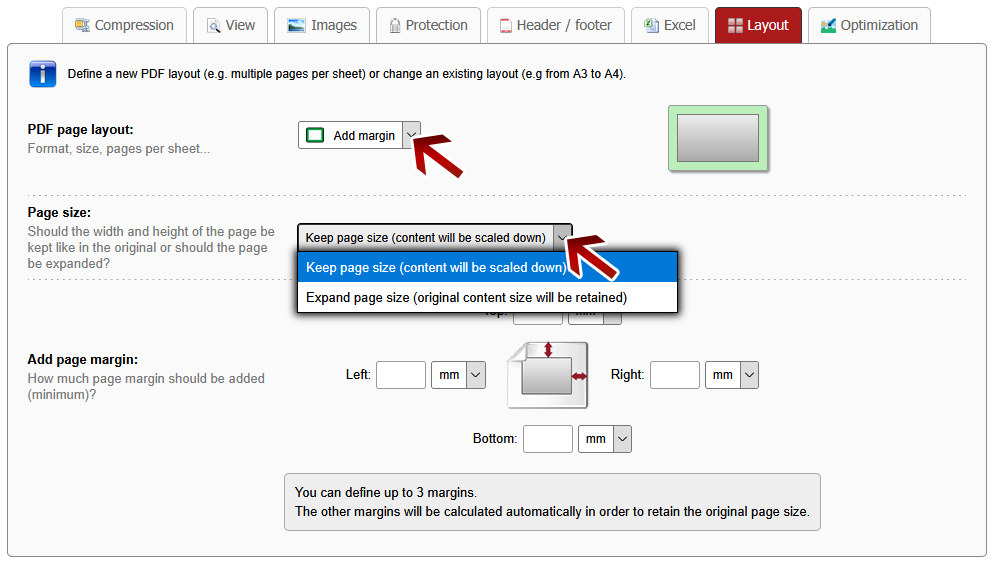
Choose the option "Add margin" if you want to add a page margin.
Method 1: Page size will remain unchanged
By default, the page size will kept, i.e. the width and height of the page is like in the original (e.g. A4 remains A4), only the content of the page will be scaled down in order to achieve the page margin. You can define up to 3 page margins. Unfilled fields will be calculated automatically in order to keep the original page size.
Method 2: Page size will be increased
If you want to increase the page size (e.g. by 10 mm) and the content should be kept in original size, you can choose the option "Expand page size". Here you can define all 4 margins separately.
Option "Remove margin"
Choose the option "Remove margin" if you want to remove the page margin.
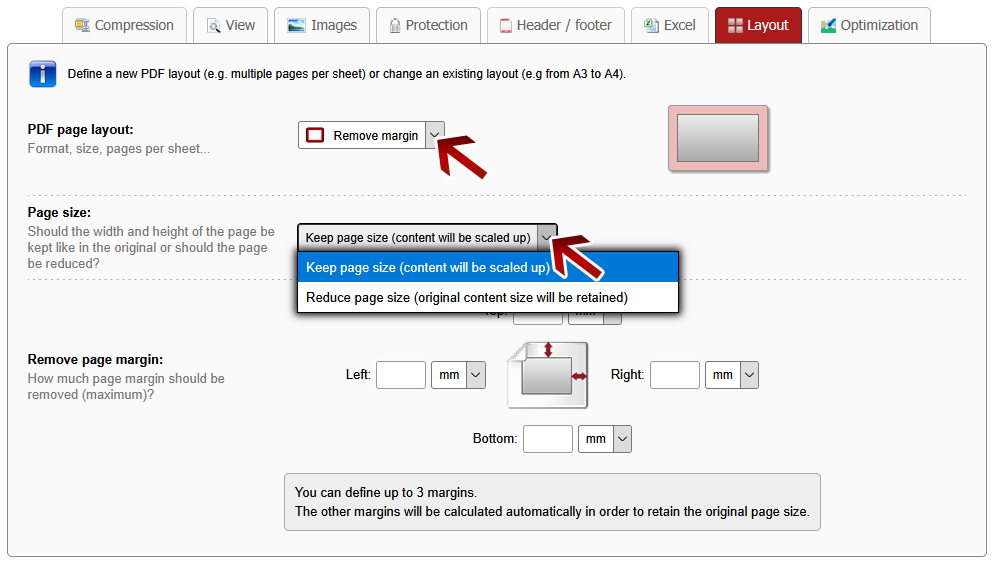
Method 1: Page size will remain unchanged
By default, the page size will kept, i.e. the width and height of the page is like in the original (e.g. A4 remains A4), only the content of the page will be scaled up in order to remove the page margin. You can define up to 3 page margins. Unfilled fields will be calculated automatically in order to keep the original page size.
Method 2: Page size will be reduced
If you want to reduce the page size (e.g. by 10 mm) and the content should be kept in original size but should be cut, you can choose the option "Reduce page size". Here you can define all 4 margins separately.
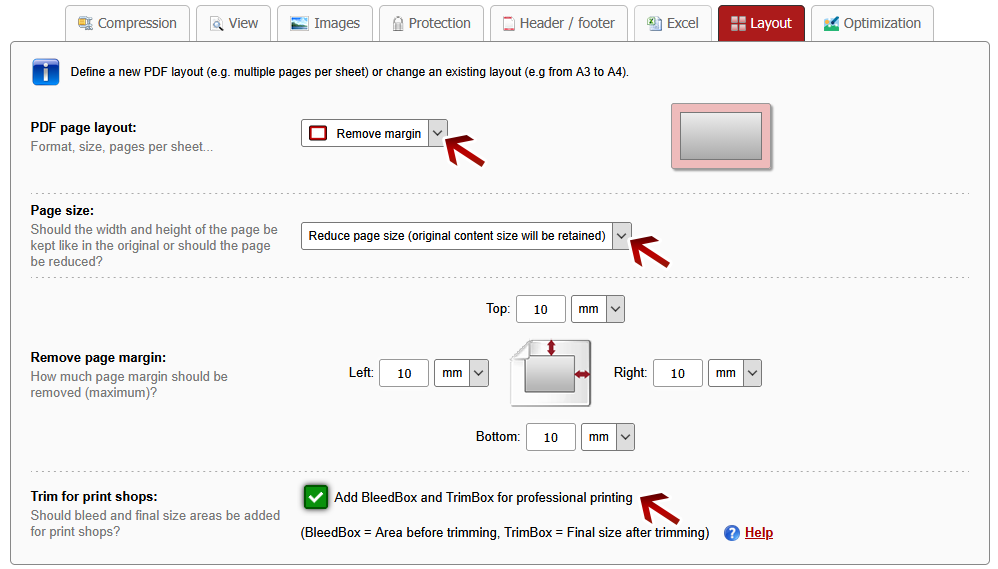
Option "Remove margin" with trim for professional printing
For professional printing and print shops it is important that the PDF file has an additional bleed area in order to avoid getting white, blank margins when printing on paper. The content is printed on a larger paper and then cut manually. If your PDF file has a page size of "A4 + 3mm margin" you want to have an A4 page as result, you have to remove the 3 mm margin and define this as bleed area. The origin area (A4 + 3mm) is called the "BleedBox", the new trimmed area (A4) after printing is called "TrimBox". These 2 areas can be added automatically and easily to the PDF by choosing the option "Reduce page size" and enabling the checkbox "Add BleedBox and TrimBox for professioinal printing" in the converter. The defined margin (e.g. 3 mm) is used to calculate the BleedBox and TrimBox completely automatically.
Important: The BleedBox and TrimBox is usuallly not visible in the converted PDF file with standard PDF viewers because they are always showing the reduced area (TrimBox). Only print shops (or special PDF tools) are able to see the origin extended area (BleedBox).
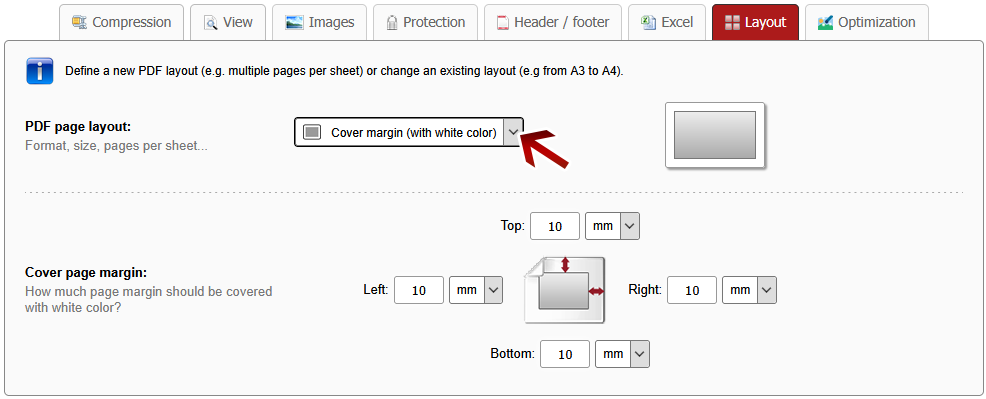
Option "Cover margin"
Choose the option "Cover margin" if the content should not be scaled up, but the page margin should be covered with white color. Text and other content in this area will be invisible. The page size will remain the same.





 Merge files
 Extract pages, rearrange pages or
  Rotate PDF pages
 Compress PDF & reduce file size
 Conversion from PDF to Word, Excel & PowerPoint
 Make scanned PDF searchable
 Remove protection &
  Protect PDF or
  Create header / footer
 Create bookmarks &
  Multiple pages
  Create booklet
 Split multi-page-layout
 Change PDF page layout